One womenswear photo. A complete listing image set.
Turn one clothing reference into white-background product photos, on-model scenes, and fabric close-ups. Review every image, rework individually, and export approved assets by SKU.
Built for womenswear sellers and launch teams
Spring womenswear · New arrivals
12 styles imported
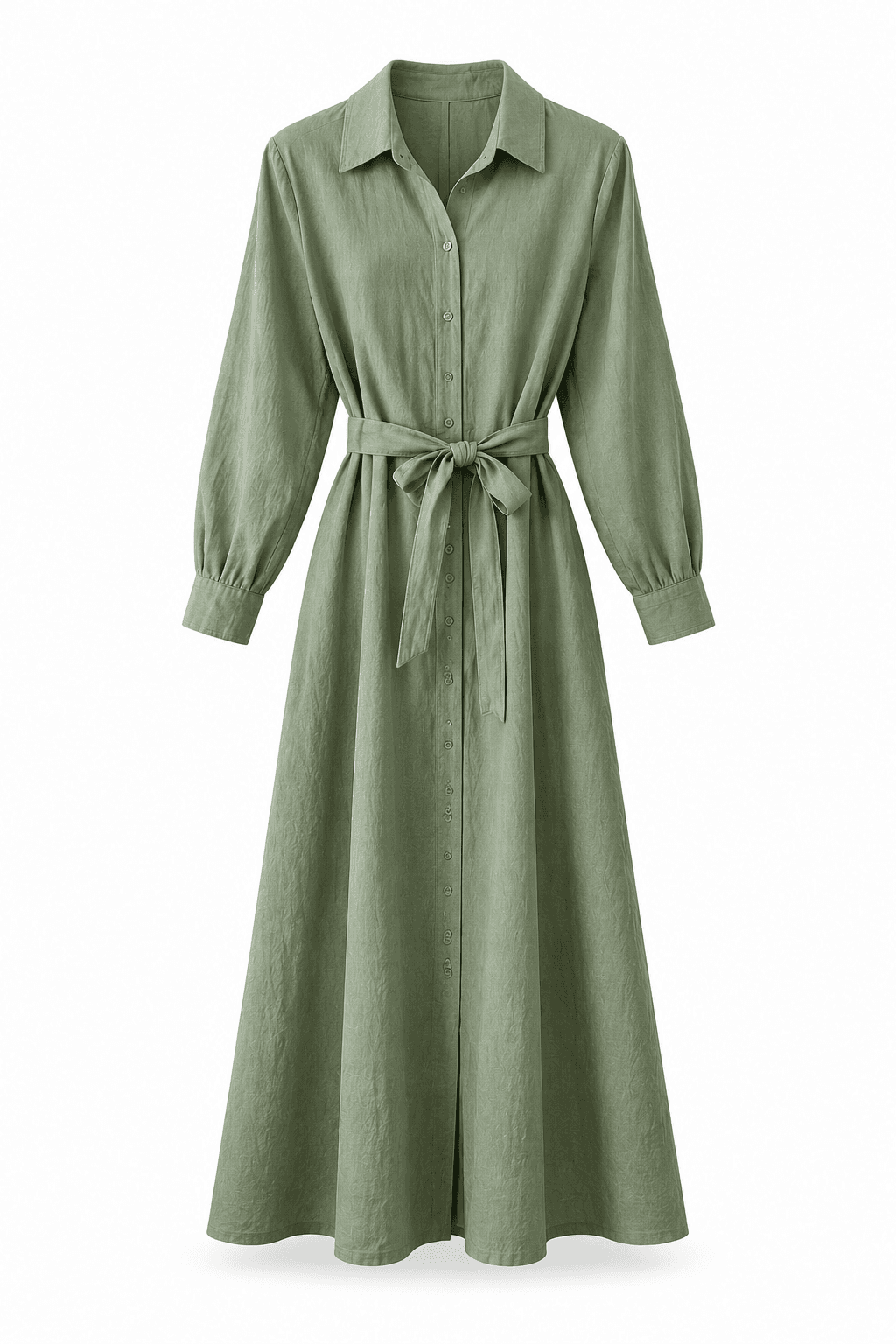
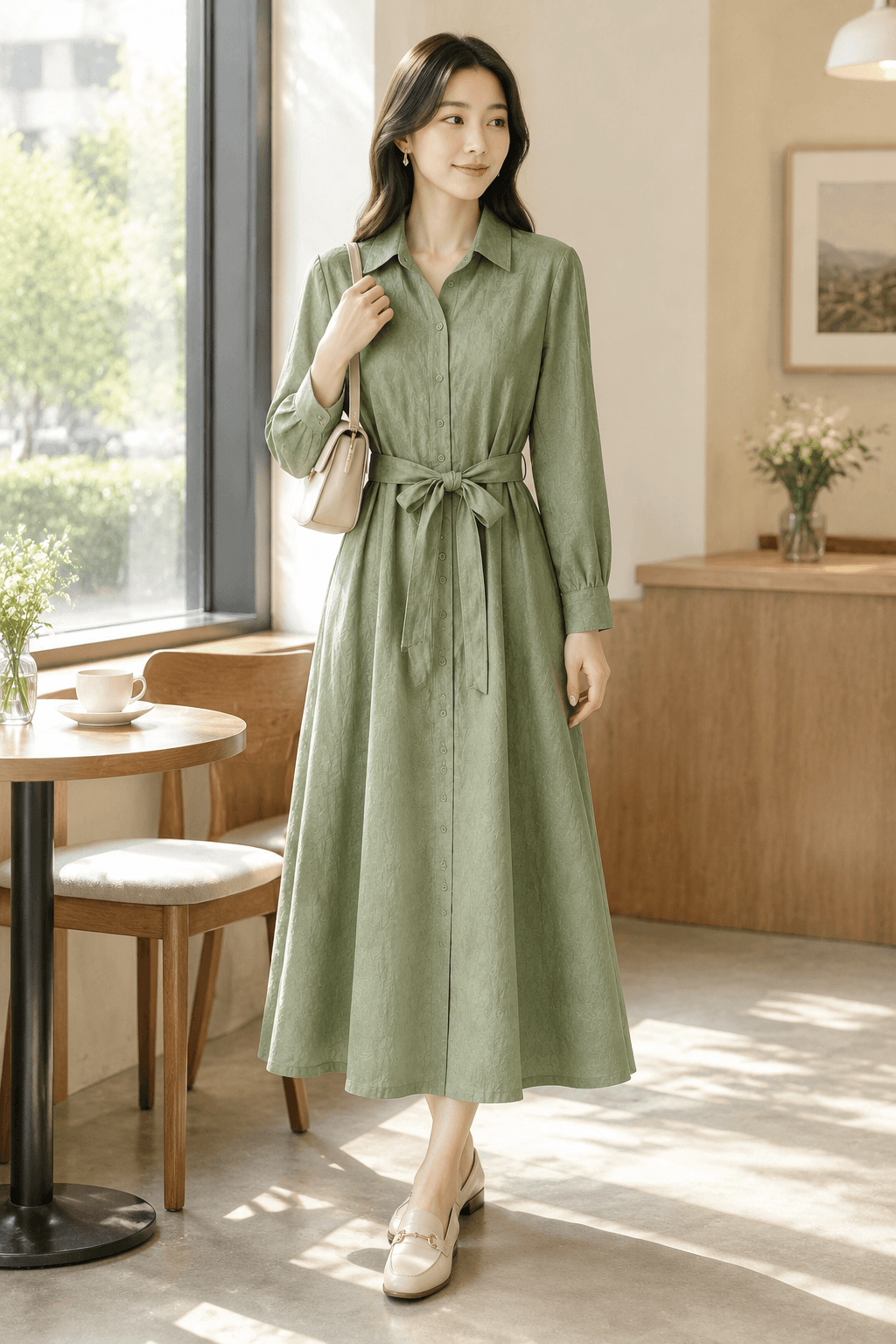
Sage shirt dress
DRS-026
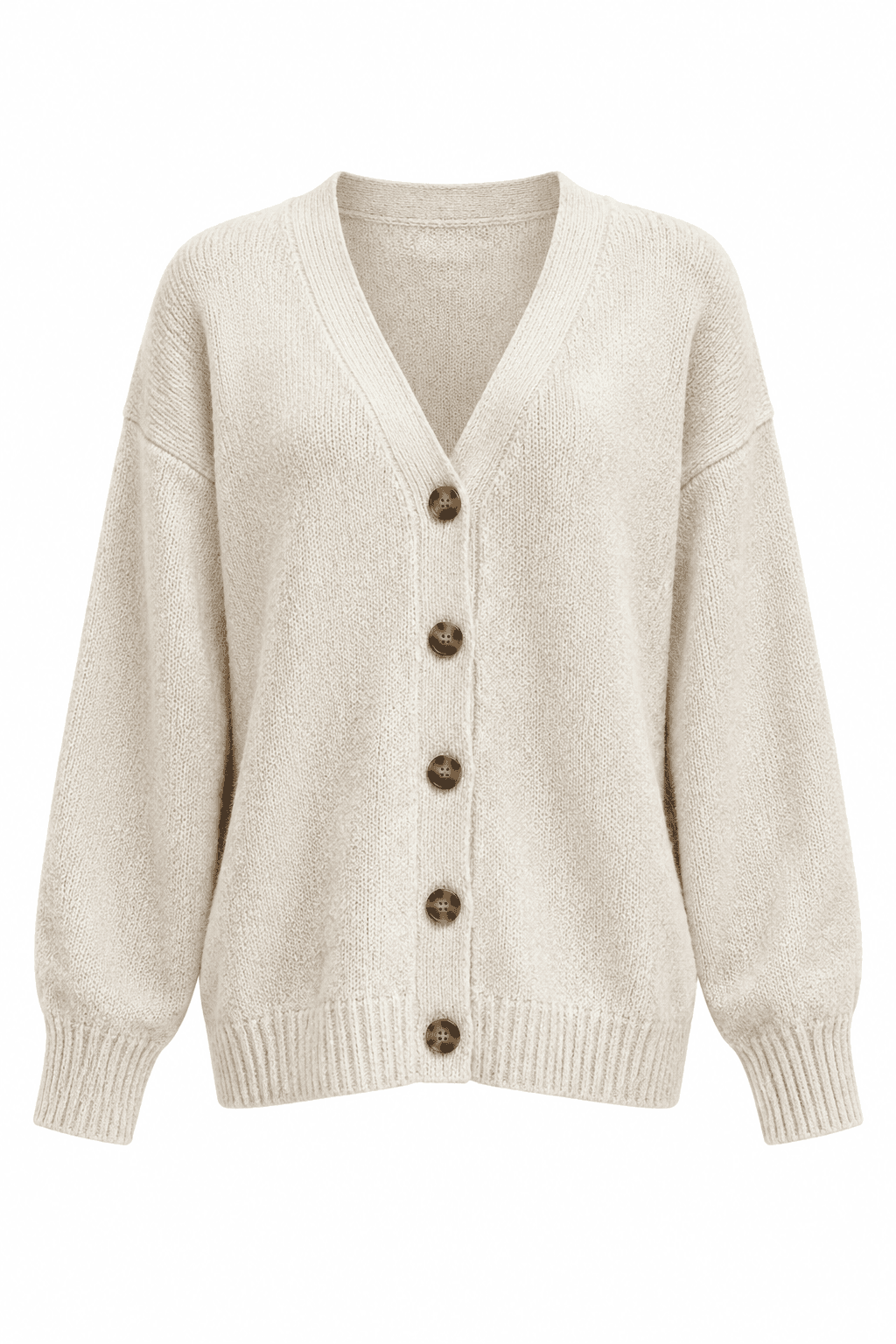
Ivory knit cardigan
KNT-018
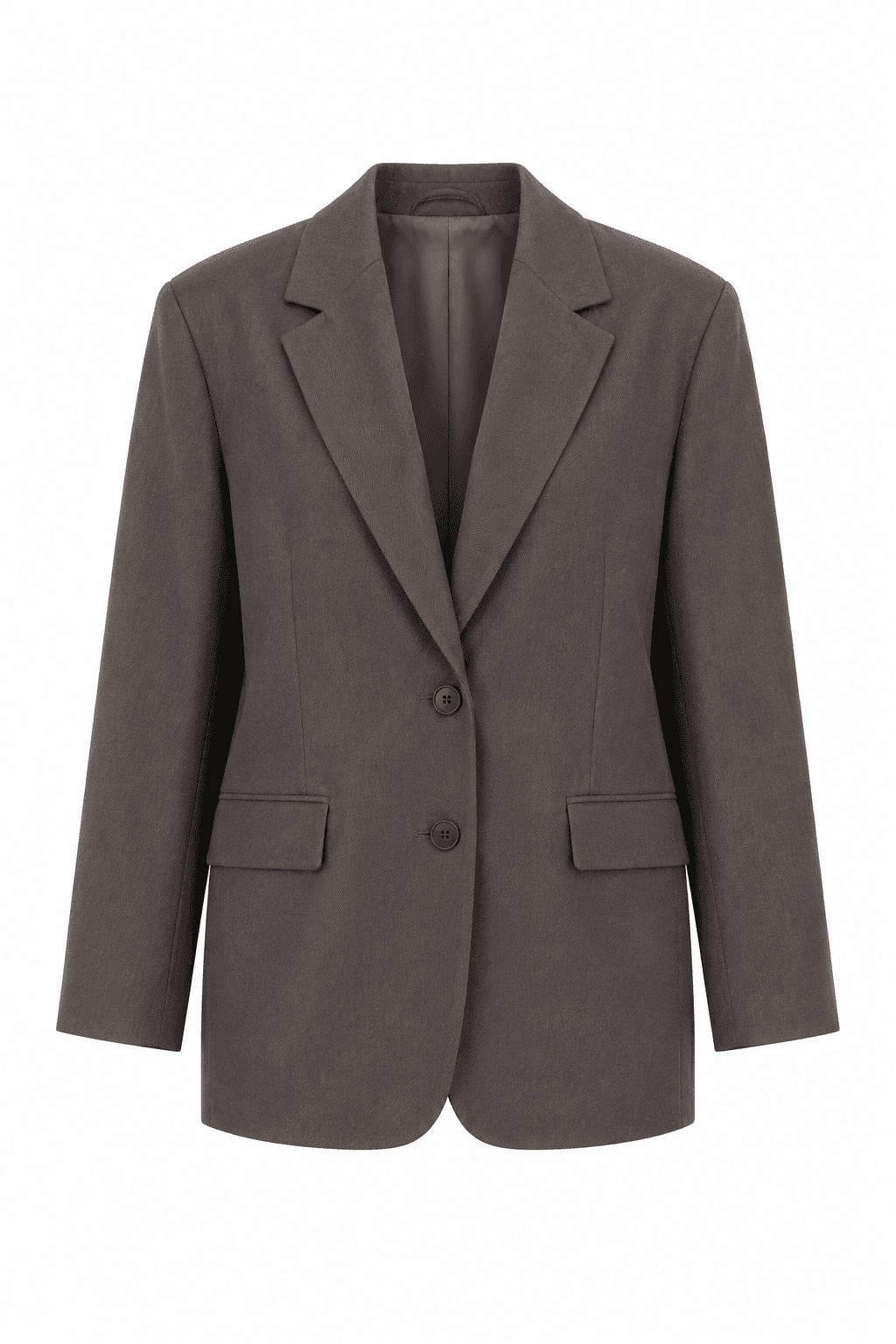
Taupe commuter blazer
BLZ-009
Approve product images before styling scenes
ONE WORKSPACE / 01
Keep generation, review, and delivery connected, with quick tools for last-mile image edits.
01 / WOMENSWEAR BATCH
Import hanging or flat-lay photos by style. Generate product images first, then on-model scenes and fabric details from approved results.
Explore womenswear photos02 / REVIEW & RETRY
Check necklines, prints, and fabric. Keep candidates without redoing the entire batch.
03 / SKU DELIVERY
Package files by style or SKU, ready for your next collection.
REAL WOMENSWEAR / 02
From original references to clean product images and on-model scenes across streetwear, French vintage, quiet-luxury tailoring, resort linen, and more. Check silhouette, color, and print before building assets for your store.
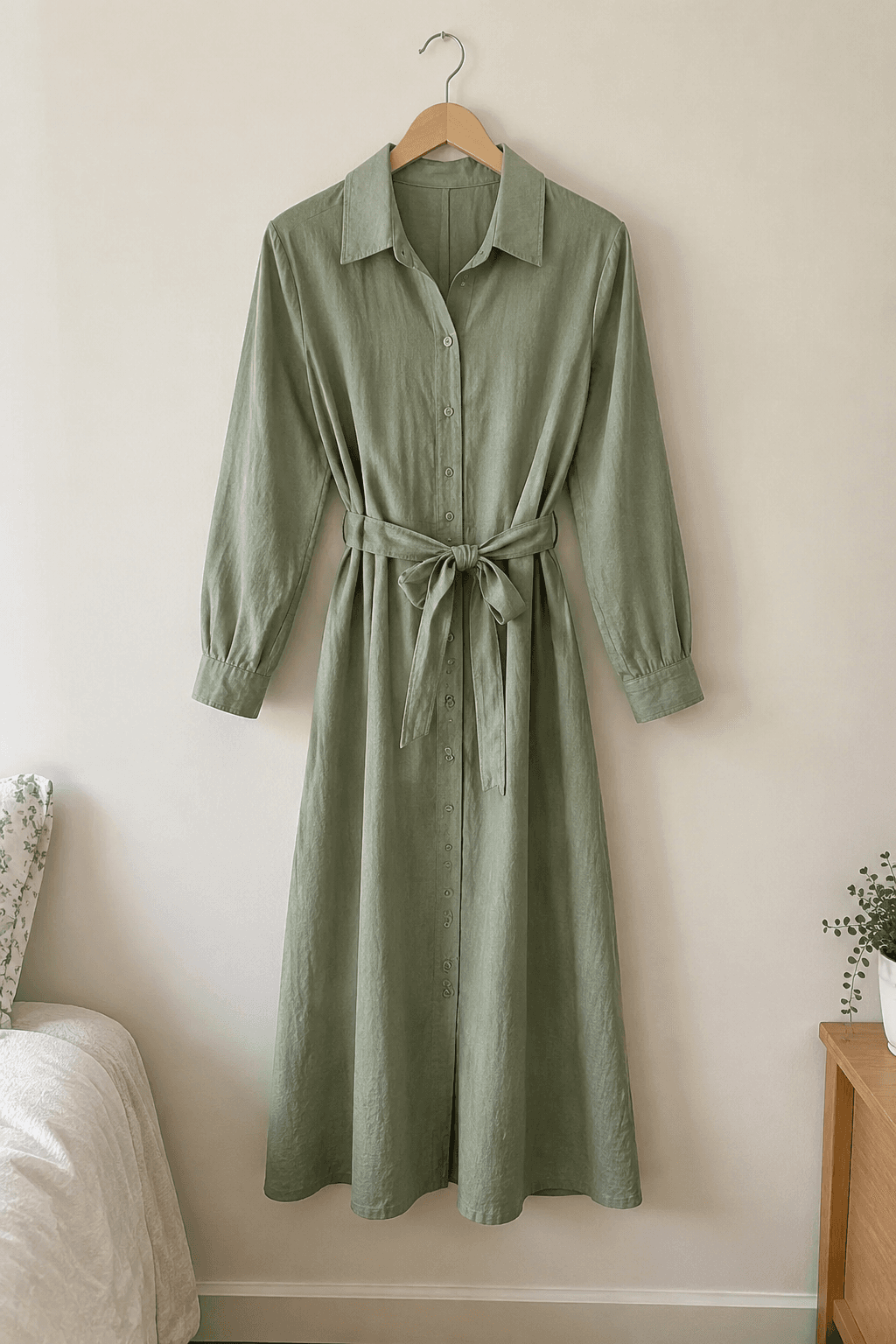
SKU DRS-026
A casual hanging reference becomes a clean main image and a softly lit cafe look for the first detail-page visual.
WORKFLOW / 03
UPLOAD
Upload hanging or flat-lay photos by style folder or filename, with SKUs attached.
APPROVE
Check silhouette, color, print, and construction against the original before approval.
GENERATE
Style on-model scenes and details from approved product images. Retry individual images with revised prompts.
DELIVER
Download approved assets named by style or SKU. Only the latest approved, unexpired version is included.
Present silhouette, neckline, sleeves, and print clearly on a clean background.
Create commuter, street, and cafe styling from approved garment images.
Highlight stitching, buttons, knitwear, and fabric texture for the detail page.
QUICK TOOLS / 04
Prepare long detail images, marketplace uploads, and fabric close-ups without another tool.
DETAIL CONTROL / 06
Check the garment silhouette, print, and fabric before generating on-model scenes. Compare each result and keep earlier candidates when you retry.
Check silhouette, neckline, print, and materials against the original
Create commuter, street, and resort scenes from approved product images
Export reviewed womenswear assets with style or SKU filenames
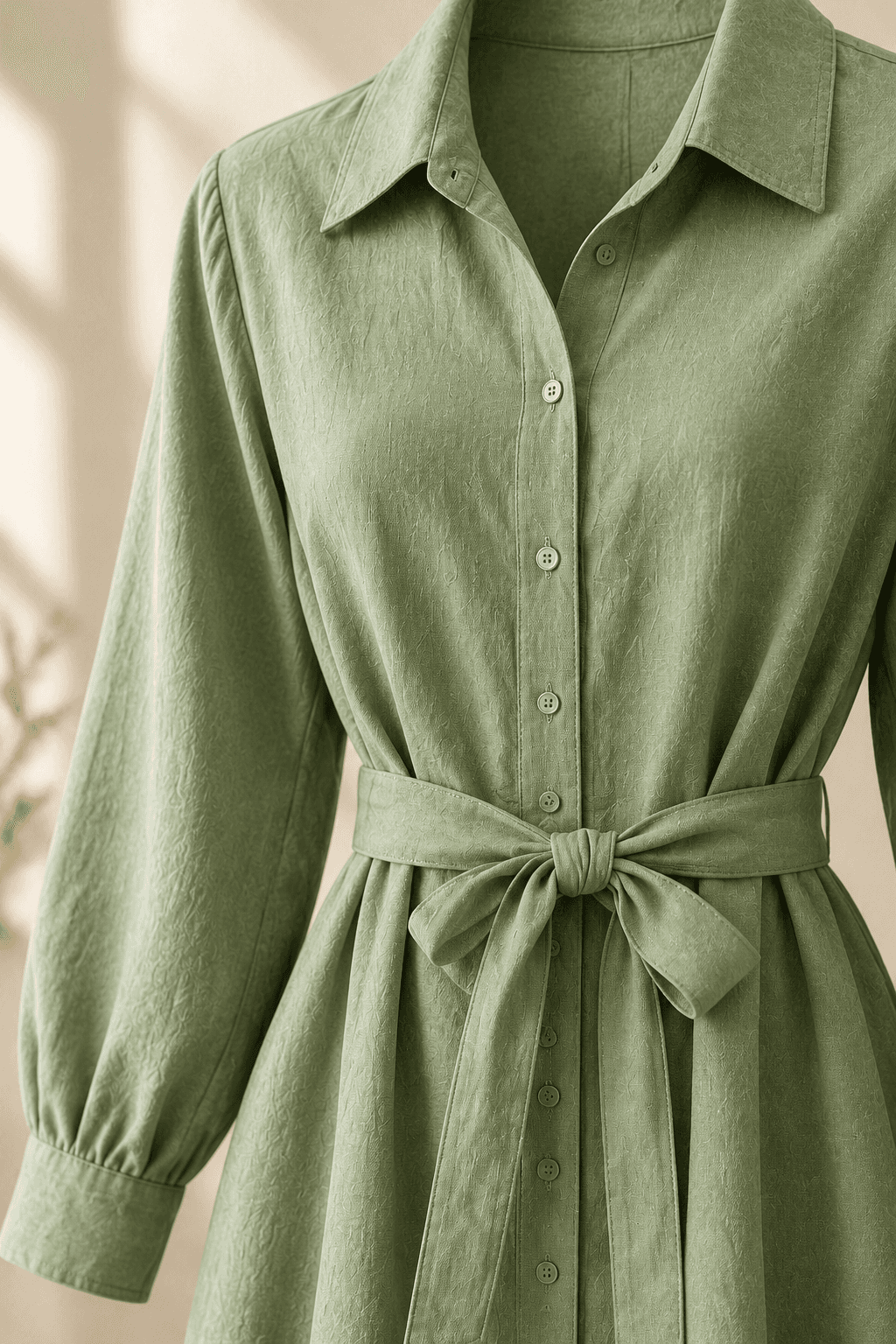
FABRIC / CONSTRUCTION
Import styles → Approve garment details → Style scenes → Export by SKU
BEFORE / AFTER
Connect every style from its source photo to approved listing assets.
Things to keep track of
In your FaFaFa AI batch
FAQ / 05
How import, review, downloads, and credits work.
Choose a folder for each product, or group photos with filenames such as product__01.jpg and product__02.jpg. Check the original and supporting references, then add a SKU for SKU-based export. Sign in to use the workspace.
Approve a white-background image for each product before generating its scenes. Compare results with their inputs, reject unsuitable images, and revise prompts before retrying. Rejection does not automatically regenerate an image; retries consume credits.
Only the most recently approved, unexpired version of each image group. Choose product or SKU filenames, or folders by batch and product. Cloud image files are available for about 2 days, so download them before expiry.
Plan credits and durations are shown on the pricing page. Generation and retries use credits according to the selected model. The web workspace and desktop client API use the same account entitlements.
READY FOR YOUR NEXT LAUNCH?
Import one garment, complete generation, review, and export before scaling to the full collection.
 FaFaFa AI