 FaFaFa AI
Studio color paper
Try a muted beige, pink or brand-color backdrop for Shopify collections and social campaigns. Keep enough contrast to show the garment outline.
Product photo backgrounds
Turn product references into scene images for your store and social posts. Use the batch workspace to describe a background, review results and export by SKU.
The current workflow starts with a reviewed white-background image, then generates scenes from your prompt. AI may change product details; compare every result with the original before publishing. Generation uses credits shown in the workspace.
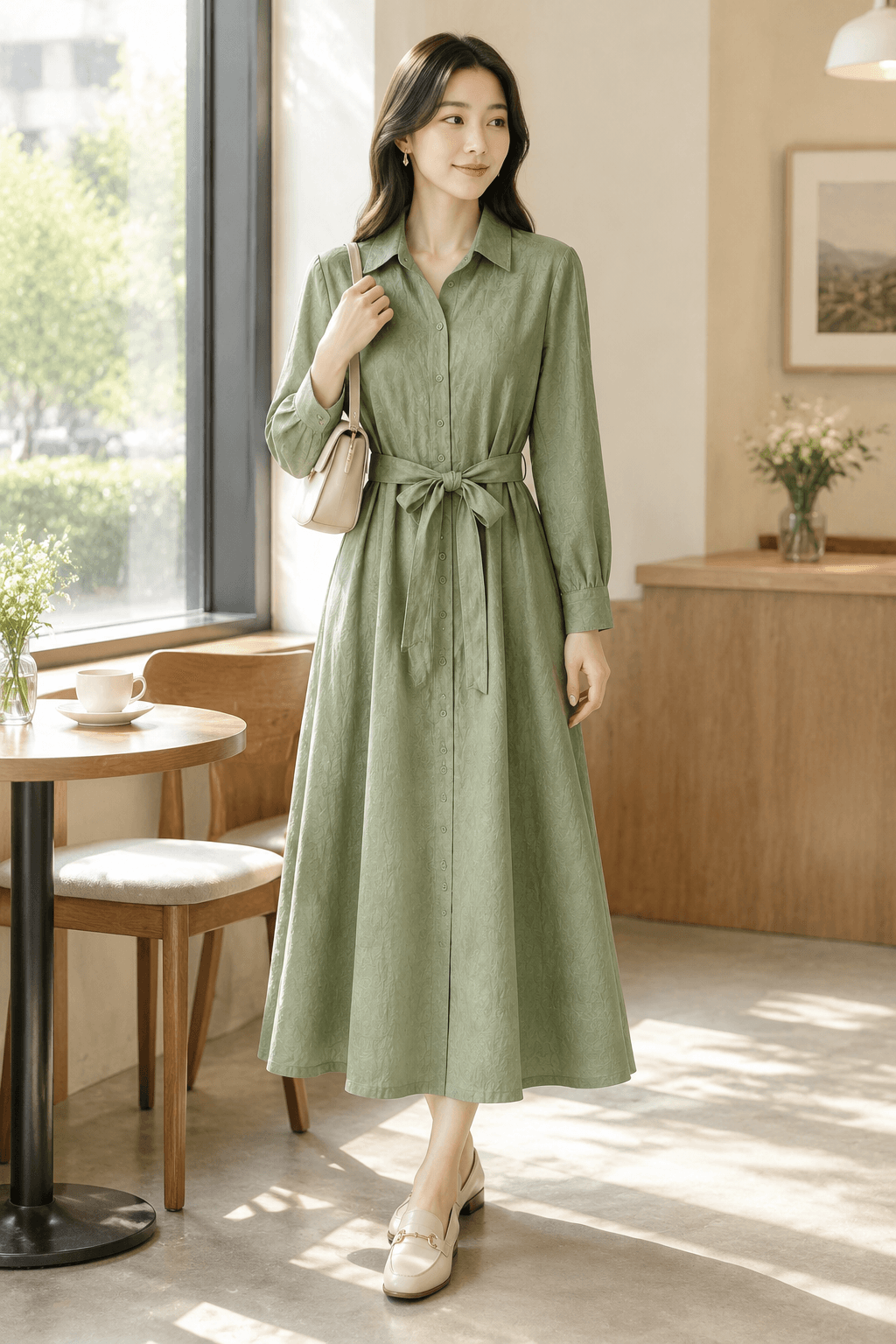
These are prompt ideas to try in the scene workflow, not one-click background presets. Describe the setting, light and product details you want to preserve.
Try a muted beige, pink or brand-color backdrop for Shopify collections and social campaigns. Keep enough contrast to show the garment outline.
For light garments or accessories, try a dark studio backdrop with soft side lighting. Check that dark fabric, edges and shadows remain readable.
Try a café window, a bright room or a simple wooden tabletop for store galleries and social posts. Keep props away from the product's key details.
This tool page focuses on color and lifestyle backgrounds for product galleries and campaigns. For Amazon main images and pure-white requirements such as RGB 255, 255, 255, use the dedicated guide and check the rules for your category before uploading.
Amazon white-background main image guideLooking for a product photo background remover or a cutout workflow? Read the comparison to choose the right workflow; this page is about generating scene images.
Compare with Photoroom01
Sign in to the web workspace, create a batch and import product reference photos. Group the images by SKU so each style keeps its own source files.
02
Generate the white-background base and compare shape, seams, print and color with the original. Approve it before moving to scenes.
03
Choose a scene template or edit its prompt with your setting and lighting ideas. Generate scene images, preview them and retry any result that changes the product.
04
Review each result, then export approved files by SKU. Check the destination platform's image requirements before uploading.
FAQ / 05
Choose a background that makes the garment's shape, color and texture easy to read. A muted studio color can suit a collection; a simple lifestyle scene can show context. Use consistent light and check the destination's requirements.
Yes, through the existing scene-generation workflow. Upload reference photos, generate and approve the white-background base, then describe a scene in the template prompt. This creates a new image rather than a guaranteed pixel-preserving background replacement. Review clothing details before use.
No. This page covers color and lifestyle backgrounds. For a pure-white main image, follow the Amazon white-background guide linked above and check your marketplace and category rules.
No app installation is needed. The product photo workspace runs in your browser. Sign in to create batches, generate and review images, and export by SKU. Check the workspace for the required generation credits.
Try black when it gives the product a clear silhouette, and lifestyle scenes when context helps a store gallery or social post. Use white for a consistent catalog or where the destination requires it. Always check that the background does not hide details or change the apparent product color.